24-Inch FHD 75Hz FreeSync Monitor: Smooth Value Upgrade
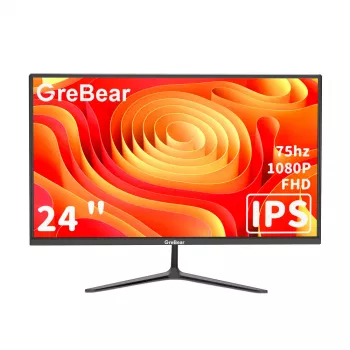
24-Inch Full HD Monitor with 75Hz and AMD FreeSync: A Practical Pick for Everyday Gaming and Work
A 24-inch 1080p monitor with a 75Hz refresh rate and AMD FreeSync lands in a sweet spot for compact desks, smooth everyday gaming, and comfortable productivity. It’s a straightforward upgrade from older 60Hz displays without demanding high-end graphics hardware. Below is what these features mean in real use, what to verify before buying, and how to set things up so you actually get the smoothness you paid for. For more guidance, see Dell G2725D Best Settings – YouTube.
Who a 24-inch 1080p monitor fits best
- Small-to-medium desks where a larger screen would feel overwhelming at close viewing distance.
- Students and home offices that need sharp text and flexible window management without a high GPU demand.
- Casual and competitive-light gaming where smoother motion than 60Hz is noticeable, especially in shooters, racers, and sports titles.
- Console and PC setups that prioritize value while still wanting adaptive sync to reduce tearing.
What “Full HD 1080p” looks like at 24 inches
At 24 inches, 1920×1080 (Full HD) typically looks crisp from normal desk distances, with text that’s easy to read and UI elements that don’t feel tiny. It’s also forgiving on hardware: older desktops, entry-level GPUs, and many laptops can drive 1080p smoothly without the performance hit that comes with 1440p or 4K. For further reading, see Refresh rate – Wikipedia.
- 1920×1080 resolution keeps system requirements modest while remaining crisp on a 24-inch panel for typical desk distances.
- Good match for older PCs, entry GPUs, and laptops that struggle to drive higher resolutions smoothly.
- For productivity: clear documents, spreadsheets, and web apps; for media: widely supported resolution for streaming.
- If the desk distance is very close, enabling OS scaling and using good font rendering settings can improve comfort.
75Hz refresh rate: what improves versus 60Hz
Moving from 60Hz to 75Hz won’t transform everything, but it does make daily use feel cleaner: mouse movement looks more continuous, scrolling feels less “steppy,” and animation in apps and games appears smoother. In gaming, 75 fps is also a realistic target on budget hardware—often easier to sustain than 120/144 fps—so the experience can feel more consistent.
AMD FreeSync: how it helps and what to verify
FreeSync is AMD’s adaptive-sync technology that helps reduce screen tearing and can also reduce the “judder” that happens when frame rate bounces around. Instead of the monitor refreshing on a fixed schedule, it can adapt (within its supported range) to better match the GPU’s frame delivery. For a deeper technical overview, AMD explains the feature here: AMD FreeSync Technology.
Adaptive-sync standards are also defined by VESA (the organization behind DisplayPort). If you want the standards-level view, see: VESA Adaptive-Sync Display and Media Specifications.
Key specs checklist before buying
At-a-glance feature table
| Feature | What it means | Why it matters |
|---|---|---|
| 24-inch screen | Compact display size for desks | Comfortable viewing without excessive head turning; easy dual-monitor pairing |
| 1920×1080 (Full HD) | Standard 1080p resolution | Clear text and media with low GPU load |
| 75Hz refresh | Up to 75 frames shown per second | Smoother motion than 60Hz for scrolling and gaming |
| AMD FreeSync | Adaptive refresh technology | Reduces tearing/stutter when frame rates fluctuate |
| Budget-friendly segment | Value-focused performance | Good step-up experience without premium pricing |
Setup tips for the smoothest experience
- Set the refresh rate to 75Hz: check your OS display settings, since many systems default to 60Hz. Microsoft’s steps are here: Microsoft: Change your display refresh rate in Windows.
- Enable adaptive sync/FreeSync: turn it on in the monitor’s on-screen menu (if required) and in your GPU driver settings.
- Use a reliable cable: if you see flicker, intermittent black screens, or dropouts, swap older or unknown cables first.
- Dial in comfort: reduce overly high brightness for long sessions, choose a comfortable color temperature (often “Warm” or ~6500K), and fine-tune sharpness so text looks clean without bright halos.
- Gaming stability tip: consider capping frame rate slightly below max refresh (for example, 72–74 fps) if it helps maintain steady pacing and avoids sudden latency spikes.
When this type of monitor is a smart buy—and when to upgrade
Featured option in stock
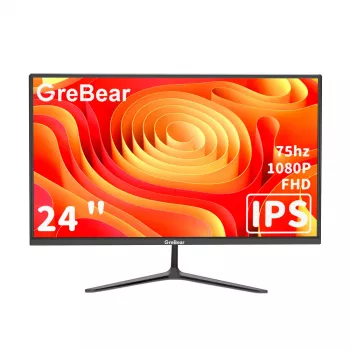
If you want a straightforward value pick, check the 24 Inch FHD 1080p Computer Monitor with 75Hz Refresh Rate and AMD FreeSync. It’s sized for everyday desks and offers the key combo—1080p clarity, a 75Hz refresh rate, and FreeSync—for work, study, and casual gaming.
More in-stock picks
FAQ
Is 75Hz noticeably better than 60Hz for daily use?
Yes—cursor movement and scrolling typically look smoother, and motion can feel less “choppy” than 60Hz. The upgrade is real but more modest than jumping to 120Hz or 144Hz.
Does AMD FreeSync work with any graphics card?
FreeSync is designed for AMD GPUs, and it generally works best in that ecosystem. Some NVIDIA GPUs can use adaptive sync on certain monitors (often labeled G-SYNC Compatible), but it depends on the GPU model, connection type, and driver/monitor support.
How do you make sure the monitor is actually running at 75Hz?
Open your operating system display settings and select 75Hz (it may be set to 60Hz by default), then confirm in your GPU control panel. You can also verify using the monitor’s info screen or an online refresh-rate checker.









Leave a comment